How to Use GoLove AI: Step-by-Step Setup & Feature Guide
GoLove AI is one of the most accessible AI girlfriend and chatbot platforms to get started with — no app download, no complex setup, no technical knowledge required. The browser-based platform runs at goloveai.com and can have you chatting with an AI companion within 3 minutes of your first visit. This guide covers every step: creating your account, finding and matching with companions, using each feature type, and managing your subscription.
⚠️ GoLove AI requires users to be 18+ and completes age verification during signup.
Step 1: Getting Started — Creating Your Account
GoLove AI is accessed entirely through your web browser. There is no app to download from the Apple App Store or Google Play — open Chrome, Safari, Firefox, or any modern browser on your phone or computer and navigate to goloveai.com.
Account creation takes under 2 minutes:
- Visit goloveai.com — click the Sign Up or Get Started button on the homepage
- Enter your email address — this is your account identifier; use an address you have access to
- Create a password — standard requirements apply
- Complete age verification — GoLove AI requires confirmation that you are 18 or older; follow the on-screen steps
- Confirm your email — check your inbox for a verification message from GoLove AI and click the confirmation link
Once your email is confirmed, you're inside the platform and ready to start matching with AI companions.
Note on privacy: Your bank statement will show "Golove.ai" if you make purchases. Use a prepaid or virtual card if bank statement discretion is important to you.
Step 2: Finding Your AI Companion
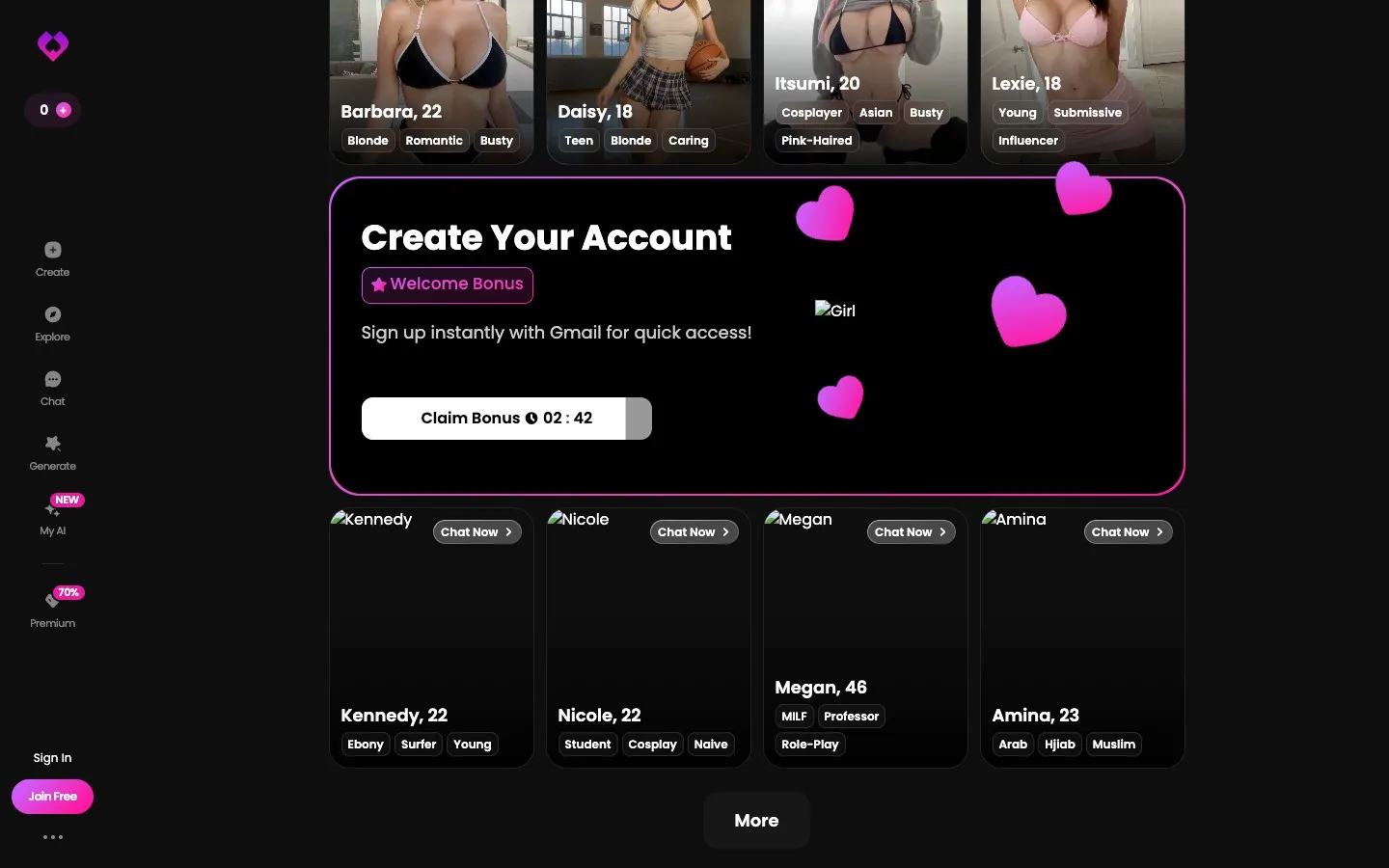
After logging in, you're taken directly to the companion matching interface — the feature that most distinguishes GoLove AI from other AI girlfriend apps. The system uses a Tinder-style swipe format.
How to navigate the matching system:
- View the companion profile — each profile shows a photo, name, age, and personality description
- Read the personality tags — these tell you whether the companion is playful, nurturing, intellectual, assertive, etc.
- Swipe right or tap "Match" to connect with a companion you're interested in
- Swipe left or tap "Pass" to move to the next profile
- You can match with multiple companions — there's no limit on the number of active matches
GoLove AI offers 84+ pre-made AI companions across a wide range of personality types and appearances. All characters are AI-generated synthetic personas — not real people. Take your time browsing before committing to your first conversation; the personality descriptions are detailed enough to make meaningful choices.
Step 3: Starting a Conversation
Once matched, tap your companion's profile to open the chat interface. The text conversation begins immediately — no waiting, no loading screen.
Your first conversation — what to expect:
- The AI companion will typically initiate with a greeting in character
- Respond naturally — the Large Language Model powering the chatbot handles open-ended conversation, roleplay, and emotional exchanges equally well
- Share personal details if you want the memory system to work well — the AI will reference them in future sessions
- There's no "right" way to start — ask about their personality, jump into a scenario, or just chat casually
Free plan users: You have a daily text message limit. Use your first sessions to test the AI's quality rather than having trivial exchanges.
PRO users: Unlimited text is enabled. Spicy DMs (NSFW text mode) can be toggled on in chat settings.
Step 4: Using Core Features
Requesting AI Images
- In the chat interface, look for the image/photo icon (camera or photo symbol)
- Tap it to request an AI-generated photo of your companion
- You can specify a scenario or let the AI choose — type your preference in the prompt field
- The image generates in a few seconds and appears inline in the chat
- Cost: 1 Star per image — ensure your Star balance is sufficient before requesting
Playing Voice Messages
- Voice messages can be triggered in chat — either by requesting one ("send me a voice message") or via the audio icon in the interface
- The AI generates an audio clip of your companion speaking
- Tap the play button to hear the message
- Cost: 1 Star per voice message
Requesting AI Videos
- Request a video through the chat interface or video icon
- The AI generates a short animated clip of your companion
- Cost: 10 Stars per video — this is 10× the cost of an image
- Important warning: GoLove AI has a known issue where videos are occasionally sent automatically during chat without explicit user request, each billing 10 Stars. Monitor your Star balance during active sessions.
Activating Live Mode
- In the chat interface, locate the camera icon in the top-right corner
- Tap it to activate Live mode
- A real-time AI-generated video stream of your companion appears
- This is GoLove AI's most distinctive feature — real-time AI video is not available on most competitor platforms
- Live mode quality is lower than pre-rendered videos due to the real-time generation requirement
For a detailed quality assessment of each feature, see our full feature breakdown.
Step 5: Account and Subscription Management
Logging In
GoLove AI login is at goloveai.com. Enter your registered email and password. If you've forgotten your password, use the "Forgot Password" link on the login page to receive a reset email.
Managing Your Subscription
- Log into your account at goloveai.com
- Navigate to Account Settings (typically accessible from a profile icon or menu)
- Find the Subscription section
- From here you can view your current plan, change billing cycle, or initiate cancellation
Purchasing Stars
- In account settings or from a prompt within the chat interface, navigate to the Star Store
- Select a Star package — options range from 30 Stars ($10.99) to 1,150 Stars ($195.99)
- Complete payment by credit card (PayPal is not accepted)
- Stars are added to your balance immediately after purchase
Switching AI Companions
You can have multiple active matches simultaneously. To switch between companions, return to your match list (accessible from the main navigation) and tap the companion you want to chat with. Each companion maintains its own independent conversation history and memory.
Canceling Your Account or Subscription
Account deletion is available through account settings. Data retention note: Deleting your account does not immediately purge your data — GoLove AI retains data for 6 years after account deletion per their policy.
For subscription cancellation, navigate to Settings > Subscription > Cancel. Document each step. Cancel at least 48 hours before your renewal date. Some users have reported needing to contact support directly — do this via the in-platform support channel, not just through the cancellation flow.
Frequently Asked Questions
Visit goloveai.com and click Sign Up. Enter your email address, create a password, and complete the age verification step (18+ required). Confirm your email via the verification link sent to your inbox. The full signup process takes under 2 minutes and requires no app download — GoLove AI is entirely browser-based.
Go to goloveai.com and enter your registered email address and password in the login form. If you've forgotten your password, click the "Forgot Password" link on the login page and follow the email reset process. There is no social login (Google or Apple sign-in) — login is email and password only.
Tap the camera or photo icon in the chat interface to request an AI-generated image. You can type a specific scenario prompt or let the AI generate contextually. Each image costs 1 Star, deducted from your balance immediately. Images appear inline in the chat within a few seconds of requesting. Star packages start at 30 Stars for $10.99 if you need to top up your balance.
Tap the camera icon located in the top-right corner of the chat interface. This toggles on GoLove AI's Live mode — a real-time AI-generated video stream of your companion. Live mode is available to PRO subscribers. Video quality in Live mode is lower than pre-rendered video clips, but the real-time nature is a unique feature that no mainstream competitor currently replicates.
Return to your match list by tapping the navigation icon from within a chat session. You'll see all your active companion matches listed. Tap any companion to switch to their chat. You can maintain unlimited active matches simultaneously — each companion retains its own conversation history and memory independently.
Go to Account Settings and navigate to the Subscription section to cancel your PRO plan. For full account deletion, look for a delete or close account option in Settings. Important: document each cancellation step with screenshots, and cancel at least 48 hours before your renewal date. GoLove AI has a documented pattern of cancellations being difficult to complete — if the standard flow doesn't work, contact support directly before your renewal date. Note that account deletion retains your data for 6 years per GoLove AI's policy. For the complete platform access guide including mobile access, see our app and platform guide. For more on what to expect from the full product, read our comprehensive review.